
Nicks
| Team |
 Free Agent Free Agent
|
|---|---|
| Country |
 Brazil Brazil
|
| Name | Nicollas Polonio de Oliveira |
| Birthday | July 12, 2005 |
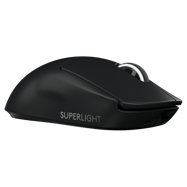

Logitech G Pro X Superlight 2 Black
DPI
Sensitivity
eDPI
Zoom Sensitivity
Hz
Windows Sensitivity
- Nicks uses these CS2 mouse settings: 800 DPI , sensitivity 1 (≈800.00 eDPI).
- Nicks sets mouse polling rate to 1000 Hz for smoother input in CS2.
- Windows sensitivity is 6 to match their in-game feeling.
Crosshair
Style
Follow Recoil
Dot
Length
Thickness
Gap
Outline
Outline Thickness
Color
Red
Green
Blue
Alpha
Alpha Value
T Style
Deployed Weapon Gap
Sniper Width
- You can copy Nicks’s CS2 crosshair instantly with the code CSGO-omDCx-a7WWE-Pqhu7-qJAti-2pFKO.
- This crosshair uses Follow Recoil set to No , length 1 and outline No .
- Alpha Value is 255, T Style is No and Deployed Weapon Gap is No.
- Sniper Width is set to 1.
- Nicks prefers a clear, static crosshair that stays readable on all CS2 maps.
Viewmodel
FOV
Offset X
Offset Y
Offset Z
Presetpos
- Nicks uses a CS2 viewmodel FOV of 68 to keep the weapon visible without blocking enemies.
- Offsets 2.5/0/-1.5 are tuned for maximum visibility around the crosshair.
HUD
HUD scale
HUD Color
- Nicks uses a HUD Scale of Unknown for a clear interface.
- HUD Color is set to Unknown.
Radar
Radar Centers The Player
Radar is Rotating
Toggle Shape With Scoreboard
Radar Hud Size
Radar Map Zoom
- Radar Centers The Player is set to Unknown.
- Radar Rotation is set to Unknown.
- Toggle Shape With Scoreboard is set to Unknown.
- Radar HUD Size is Unknown.
- Radar Map Zoom is Unknown.
BOB
Lower AMT
AMT Lat
AMT Vert
Cycle
- Nicks reduces weapon bob in CS2 (lower amt Unknown , lat Unknown, vert Unknown ) to keep the screen as stable as possible while moving.
- Lower bob helps with tracking targets and spraying without too much visual shake.
Launch options & config file
Video
Resolution
Aspect Ratio
Scaling Mode
Brightness
Display Mode
- Nicks plays CS2 on 1280x960 (4:3) with Stretched scaling.
- Display mode is set to Fullscreen for maximum focus and responsiveness.
- Brightness is kept around 80% so enemies don’t blend into dark areas.
Advanced video
Global Shadow Quality
Model / Texture Detail
Shader Detail
Boost Player Contrast
Multisampling Anti-Aliasing Mode
Texture Filtering Mode
Wait for Vertical Sync
NVIDIA Reflex Low Latency
Particle Detail
Ambient Occlusion
FidelityFX Super Resolution
NVIDIA G-Sync
Maximum FPS In Game
Dynamic Shadows
High Dynamic Range
- Nicks tunes CS2 graphics for high FPS rather than pure visuals.
- Shadow quality, model detail and particle detail are kept at readable competitive values to reduce clutter.
- Multisampling Anti-Aliasing Mode is set to Unknown.
- Boost Player Contrast is Unknown so enemies stand out more clearly.
- NVIDIA Reflex Low Latency is Unknown and NVIDIA G-Sync is Unknown.
- Maximum FPS In Game is capped at Unknown.
- Dynamic Shadows are Unknown, Ambient Occlusion is Unknown, HDR is Unknown and FidelityFX Super Resolution is Unknown.
Monitor Game Settings
- Nicks uses monitor gaming settings that make enemies easier to spot in CS2.
Monitor Picture
- Nicks keeps monitor picture settings focused on clarity rather than “pretty” colours.

PC Specs


Setup

More CS2 pro player settings





FAQ – Nicks CS2 settings
What mouse does Nicks use?
Nicks uses the Logitech G Pro X Superlight 2 Black.
What sensitivity does Nicks use?
Nicks uses sensitivity 1.
What DPI does Nicks use?
Nicks uses 800 DPI.
What eDPI does Nicks use?
Nicks uses 800.00 eDPI.
What Hz does Nicks use?
Nicks uses 1000 Hz.
What crosshair code does Nicks use?
The crosshair code is CSGO-omDCx-a7WWE-Pqhu7-qJAti-2pFKO.
What crosshair settings does Nicks use?
Nicks uses a crosshair with style Classic Static, gap -4, thickness 1, and length 1.
What resolution does Nicks use?
Nicks plays on 1280x960.
What aspect ratio does Nicks use?
Nicks uses a 4:3 aspect ratio.
What brightness does Nicks use in CS2?
Nicks uses in-game brightness 80%.
What viewmodel does Nicks use?
Nicks uses viewmodel FOV 68, offset X 2.5, offset Y 0, and offset Z -1.5.
What HUD settings does Nicks use?
Nicks uses HUD Scale Unknown and HUD Color Unknown.
What radar settings does Nicks use?
Nicks uses Radar Zoom Unknown, Radar HUD Size Unknown, and Radar Rotating Unknown.
What team does Nicks play for?
Nicks currently plays for Free Agent.
Nicks CS2 Settings Summary
Here you can quickly see the most important CS2 settings used by Nicks, including mouse, sensitivity, crosshair code, resolution, HUD settings, radar settings, and graphics card setup.