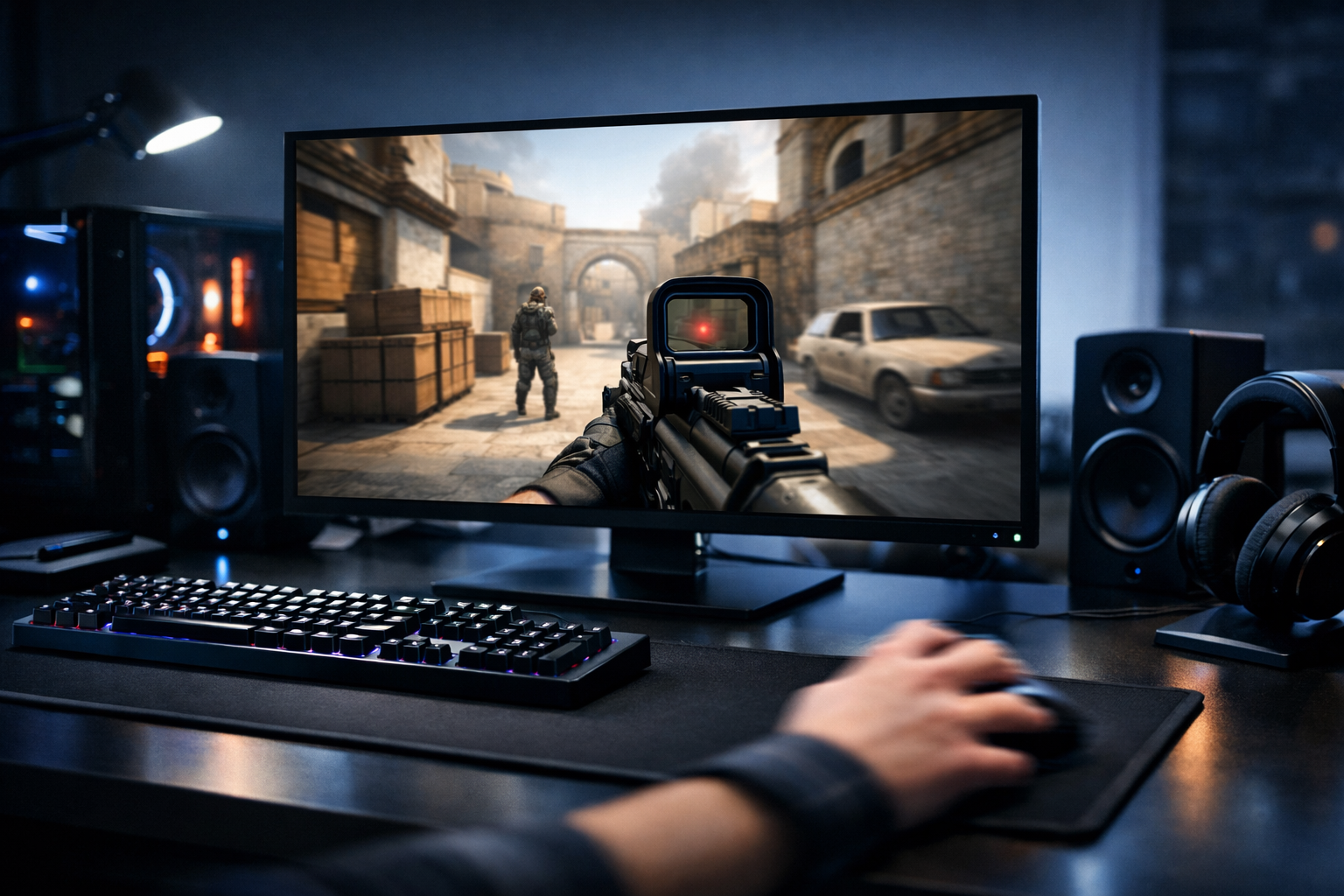
CS2 input lag explained: what it changes and what actually helps
CS2 input lag is the delay between your mouse or keyboard action and the moment the game shows that action on screen. In CS2, that delay can affect aim timing, counter-strafing, and spray control. The good news is that cs2 input lag usually comes from a few clear sources, so you can identify what matters and ignore what does not.
TL;DR
- CS2 input lag is the delay between your input and the on-screen response, and it mainly affects timing-heavy mechanics.
- The biggest causes are usually unstable frame times, display settings, and background system load rather than one hidden option.
- Start with stable FPS, a clean system, and simple display settings before chasing smaller tweaks.
When players talk about a setup feeling heavy or delayed, they are usually describing cs2 input lag rather than raw FPS alone. You can have high frame rates and still feel late on flicks, peeks, or movement corrections if the full input chain adds too much delay.
That chain starts with your mouse or keyboard, moves through Windows and the game engine, and ends at your monitor. If one part is slow, the whole game can feel less responsive. Looking at electronic CS2 settings can help you compare your own setup choices with a common competitive baseline.
The practical effect of CS2 input lag in matches
The easiest way to understand cs2 input lag is to focus on what you feel in real rounds. Your crosshair arrives a little late, your stop before shooting feels less clean, and micro-adjustments can seem slippery.
That does not mean every missed shot comes from delay. Aim, positioning, and timing still matter more. Still, extra delay can make good mechanics harder to repeat, especially in fast duels.
A simple example is a close-range swing on Mirage. You hear the step, pre-aim the angle, and flick as the enemy appears. If your system adds noticeable delay, the visual response can trail your hand movement enough to make the flick feel behind the target.
This is why many players describe low-lag setups as more connected rather than more accurate. The setup does not aim for you. It simply makes your own timing easier to trust.
Where the delay usually comes from
Most cs2 input lag comes from a mix of frame rendering, display behavior, and background system load. The game has to process your input, build the next frame, and send that frame to the monitor. If any step slows down, the delay grows.
Low FPS is one obvious cause, but unstable frame times are often worse. A game that jumps between smooth and uneven delivery can feel inconsistent even when the average FPS looks fine.
Display settings matter too. Higher refresh rates can reduce the time between visual updates, which often makes mouse movement feel more immediate. Monitor processing can also add delay, especially if extra image features are enabled.
Background apps are another common source. Overlays, recording tools, browser tabs, and RGB software can all compete for resources. In many cases, the fix is not a secret CS2 command. It is simply removing avoidable load.
A short checklist of common causes
- Unstable FPS or poor frame pacing
- V-Sync or heavy display processing
- Background apps and overlays
- High-latency peripherals or USB issues
- Windows power or graphics settings
Peripherals can matter, but usually less than players think. A decent modern mouse is rarely the main problem. If you want to compare common competitive gear choices, the device CS2 settings page is a useful reference point.
When input lag matters most, and when it does not
CS2 input lag matters most in situations that depend on precise timing. Entry fights, fast transfers, counter-strafe shots, and close-range tracking all become harder when the game responds late.
It also matters more for players with developed mechanics. If your aim is already consistent, extra delay is easier to notice because it interrupts patterns your hands expect. Newer players may feel something is off without knowing the cause.
On the other hand, small differences do not always decide rounds. If your positioning is poor or your crosshair placement is off, shaving a little delay will not fix the bigger issue. That is why cs2 input lag should be treated as one part of responsiveness, not the whole story.
There is also a point of diminishing returns. Once your setup is reasonably responsive, chasing tiny gains can waste time. Many players improve more by stabilizing settings and practicing than by changing options every session.
What can often reduce CS2 input lag safely
The best fixes are usually practical, not exotic. Start by making the game stable before trying advanced tweaks. In many cases, cs2 input lag drops when frame times become more consistent and the display path stays simple.
First, lower settings that heavily affect frame delivery if your system struggles. You do not need the lowest possible visuals on every PC, but you do want steady performance during smokes, utility, and crowded fights.
Second, avoid features that can add visible delay. V-Sync can improve tearing in some setups, but it often increases latency. Extra monitor image processing can do the same. A direct, low-processing path is usually better for CS2.
Third, clean up the system around the game. Close overlays you do not need, stop background recordings if they hurt performance, and use a sensible power plan. These changes are boring, but they can help more than random launch options.
If you are also adjusting aim feel while troubleshooting, use the crosshair generator to keep your visual reference consistent. That makes it easier to tell whether the issue is true delay or just a crosshair change affecting perception.
Practical fixes worth trying first
- Target stable FPS, not only high average FPS
- Disable unnecessary overlays and background apps
- Use your monitor’s high refresh mode correctly
- Avoid extra display processing where possible
- Change one setting at a time and retest
If you want another competitive setup example, check Hobbit CS2 settings and compare only the broad choices, not every exact value. The goal is to spot simple patterns, such as clean visuals and consistent sensitivity habits.
The limits of tweaking and the best next step
Not every case of cs2 input lag can be solved inside the game menu. Some delay comes from older hardware, weak single-core performance, poor monitor behavior, or system-level conflicts. In those cases, settings can reduce the problem, but not remove it fully.
There is also a perception issue. Players sometimes blame input lag when the real problem is packet loss, inconsistent sensitivity, or poor crosshair visibility. That is why testing should stay controlled. Change one variable, play a few rounds, and judge the result by feel and consistency.
A good next step is to build a stable baseline and stop there. Use a clean config, keep your refresh rate correct, remove obvious background load, and avoid constant experimentation. Once the game feels predictable, your practice becomes more useful.
CS2 input lag is best treated as a responsiveness problem with a few common causes, not a mystery. Fix the large sources first, compare your setup with proven competitive references, and only then worry about smaller gains.
FAQ
What is CS2 input lag in simple terms?
CS2 input lag is the time between pressing a key or moving your mouse and seeing the result on screen. A small amount is always present, but too much delay can make aiming, movement timing, and spray control feel less responsive and less consistent.
Does higher FPS always reduce input lag?
Higher FPS can reduce input lag, but stable frame times matter just as much. A system with uneven frame delivery may feel worse than one with slightly lower but steadier performance. In many cases, consistency is more useful than chasing the highest average number.
Should I change many settings at once?
No. Changing many settings together makes it hard to tell what actually helped. A better approach is to adjust one option, test it in the same map or match conditions, and keep notes on how movement, flicks, and counter-strafing feel afterward.