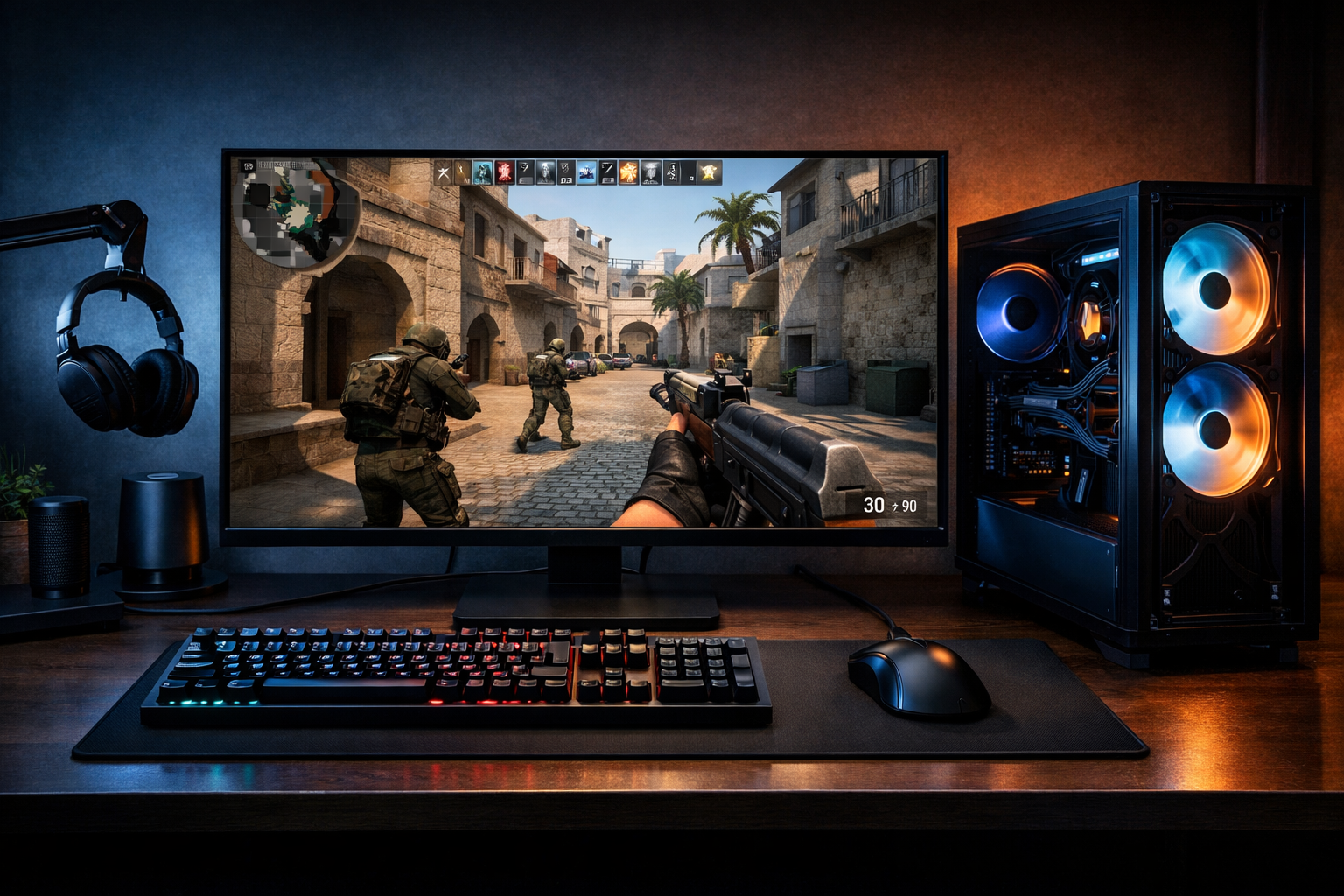
How to reduce input lag in cs2: common mistakes and fixes
If your aim feels delayed, inconsistent, or heavy, the fix is often simpler than players expect. To reduce input lag CS2, you need stable frame delivery, sensible video settings, and a clean hardware path. Input delay is usually caused by a few common mistakes, not one magic setting.
TL;DR
- To reduce input lag CS2, prioritize stable frametimes over the highest average FPS.
- Disable settings that often add delay, especially V-Sync, and test fullscreen with a clean baseline.
- Confirm improvements with repeatable warmup tests instead of trusting one short session.
Many players try to fix delay by changing random launch options or copying a pro config. That can waste time because input lag in CS2 usually comes from a chain of small issues. If you want to reduce input lag CS2 effectively, start by removing the biggest mistakes first.
The goal is not just high FPS. The goal is fast and consistent response between your mouse click, your movement input, and what appears on screen. In many cases, a stable 300 FPS with clean frame pacing feels better than unstable peaks that swing hard every round.
The biggest mistake: chasing FPS while ignoring frame consistency
A common mistake is focusing only on the highest FPS number in a benchmark. CS2 can feel delayed even when average FPS looks strong, because poor frame pacing often adds a soft, uneven response. That is why some systems feel worse at 400 unstable FPS than at a lower but steadier range.
To reduce input lag CS2, lower settings that hit your GPU hardest when fights get busy. Shadows, effects, and resolution scaling can change how stable your frametime stays during smokes, utility, and crowded angles. If your GPU is the limit, a hardware upgrade path can matter more than another config tweak, and this best GPU for CS2 guide is a useful next step.
- Mistake: uncapped FPS with heavy frametime spikes. Fix: target a stable range your PC can hold in fights.
- Mistake: maxing visual settings for clarity. Fix: lower the options that create GPU load during utility.
- Mistake: testing only in empty maps. Fix: check performance in real matches or bot-heavy practice.
- Mistake: changing five settings at once. Fix: adjust one variable, then compare feel and frametime.
If your system is CPU-limited, lowering graphics may not help much. In that case, background apps, browser tabs, overlays, and recording tools can be the real cause. The fix is to reduce extra load so the game thread stays more responsive.
Settings that often add delay instead of helping
Some settings are meant to improve smoothness, but they can increase latency in practice. V-Sync is the clearest example. It can reduce tearing, yet it often adds enough delay to make flicks and micro-corrections feel late.
For most players trying to reduce input lag CS2, V-Sync should stay off. Motion blur should also stay off, not because it adds huge latency by itself, but because it makes visual response harder to read. Fullscreen mode is usually the safer choice as well, since borderless can add extra overhead on some systems.
Another mistake is using a frame cap that sits too close to your monitor refresh without testing the result. A cap can improve consistency, but the wrong cap can also create uneven pacing. Try uncapped, then a sensible cap above your refresh, and compare which one gives cleaner mouse feel.
Driver settings matter too, but they should stay simple. Over-tuning low latency options, image sharpening, or third-party overlays can create conflicts. Use a clean baseline first, then test one driver change at a time.
Your hardware path can be the hidden bottleneck
Players often blame CS2 settings when the delay starts before the game even receives the input. A weak mouse polling path, overloaded USB chain, old keyboard firmware, or unstable wireless connection can all make the game feel less immediate. The result feels like game lag, even when the issue is partly outside the game.
If your keyboard has inconsistent actuation or poor latency behavior, movement can feel muddy during counter-strafes. That is one reason many players compare boards before upgrading, and our best keyboard for CS2 page can help if your current board feels slow or unreliable.
Audio gear can also affect perceived responsiveness more than people expect. If footsteps and shot timing reach you late or sound smeared, your reactions can feel delayed even when raw input is fine. A cleaner audio setup from a solid best headset for CS2 option can improve timing reads, though it does not directly change click latency.
Copying a player setup without context is another mistake. A pro config can work well on one PC and feel wrong on another. If you want a reference point for a competitive setup style, check the hades CS2 settings page, then adapt the ideas to your own hardware instead of copying everything blindly.
A safer fix order that usually works
When players try to reduce input lag CS2, the best approach is a short workflow instead of random tweaks. Start with the settings most likely to change response, then move outward to drivers and hardware. This keeps the process clear and makes it easier to spot what actually helped.
First, use fullscreen, disable V-Sync, and remove unnecessary overlays. Second, lower the GPU-heavy settings that create spikes during fights. Third, close background apps and test whether your frametime becomes steadier. Fourth, compare uncapped FPS against a practical cap and keep the option that feels more consistent.
After that, check your peripherals. Use a direct USB connection where possible, update firmware if needed, and avoid crowded hubs for your main mouse and keyboard. If you are on older hardware and still cannot hold stable performance, the better fix may be a component upgrade rather than another in-game tweak.
This is also the point where a broader settings reference can help. If you want more setup ideas after the core fixes, browse the main CS2 guides hub and compare your current setup against other focused guides.
How to confirm the fix actually worked
The last mistake is trusting first impressions after one deathmatch. Input lag can feel better for ten minutes simply because a server is cleaner or your hands are warmed up. You need a repeatable test so you can separate real improvement from a temporary good session.
Use the same map, same sensitivity, and same warmup routine for each test. Pay attention to counter-strafes, first-bullet timing, and how quickly your crosshair stops when you change direction. Those are often easier to judge than raw flick speed.
Watch for before-and-after signs. Good changes usually make taps feel cleaner, tracking feel less floaty, and movement corrections feel more exact. Bad changes often create a strange mix of smooth visuals and delayed control, which usually means latency increased somewhere in the chain.
If you still cannot reduce input lag CS2 after these fixes, the issue is often a hardware limit, a driver conflict, or unstable frametime under load. In many cases, the best result comes from combining moderate settings, stable FPS, and a clean peripheral setup rather than chasing one miracle option.
Bottom line: reduce the spikes before you chase extra frames. Stable response usually beats flashy settings, and a simple test routine will show you which changes actually make CS2 feel faster.
FAQ
Does higher FPS always lower input lag in CS2?
Not always. Higher FPS can help, but unstable frametimes often make the game feel worse even when the average number looks high. In many cases, a lower but steadier frame rate gives cleaner mouse response and more predictable movement timing.
Should I use V-Sync to reduce input lag?
Usually no. V-Sync can reduce tearing, but it often adds enough delay to make aiming and counter-strafing feel less immediate. Most players looking for faster response in CS2 will get better results with V-Sync off and a cleaner frame pacing setup.
Can peripherals make CS2 feel more delayed?
Yes. A weak keyboard, unstable wireless connection, overloaded USB path, or poor mouse behavior can all add inconsistency. That does not always create huge raw latency, but it can make movement, clicks, and timing feel less precise during real matches.