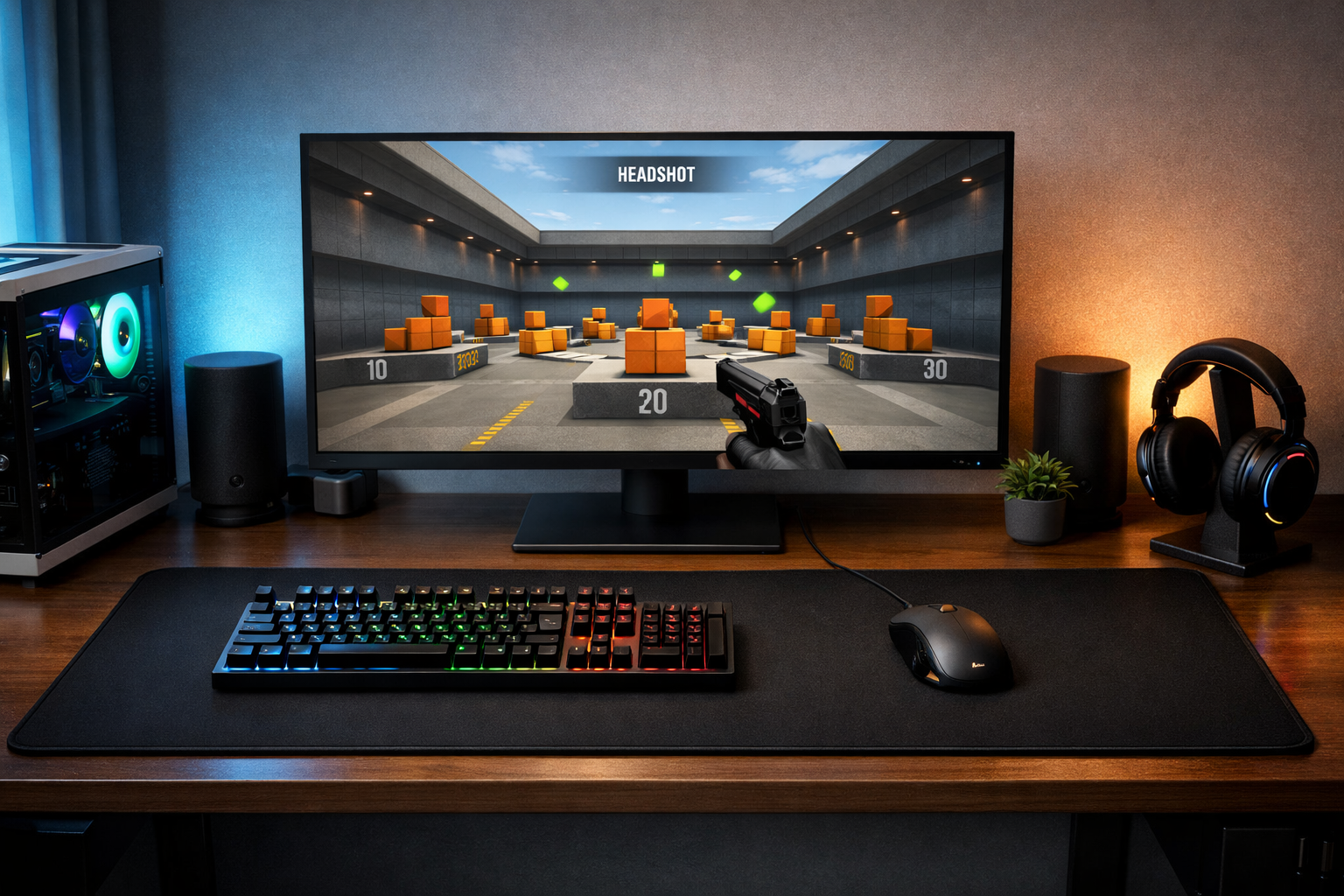
How to disable mouse acceleration cs2 and fix inconsistent aim
Disable mouse acceleration CS2 by turning off Windows pointer acceleration and checking your wider mouse setup. This helps keep your aim consistent because the same hand movement produces the same crosshair distance, which is usually better for flicks, tracking, and muscle memory.
TL;DR
- Turn off Enhance Pointer Precision in Windows to remove the most common source of mouse acceleration.
- Test fixed swipe distances at slow and fast speeds before changing DPI or sensitivity.
- If aim still feels inconsistent, check mouse software, profiles, polling rate, and surface quality.
If your crosshair feels different from one swipe to the next, mouse acceleration is often part of the problem. Many players search for how to disable mouse acceleration CS2 because their aim feels fast on long swipes and slow on short ones.
In CS2, the main issue usually comes from Windows settings rather than a hidden in-game toggle. If you want a stable baseline before changing sensitivity, start with a clean setup and then compare your aim over several rounds.
A good next step is to review other core setup pages in the CS2 guides hub, especially if your mouse still feels off after changing Windows settings.
Signs mouse acceleration is affecting your CS2 aim
The most common symptom is inconsistent turning distance. You move your mouse the same physical amount, but your crosshair lands in a different spot depending on how quickly you moved.
This often shows up during flicks, spray transfers, and fast clears. Slow peeks may feel fine, but quick reactions can become unreliable because speed changes the final cursor movement.
Another clue is trouble building muscle memory. If you practice the same angle every day and it still feels slightly different, acceleration can be one reason.
Players also describe it with search phrases like “CS2 mouse feels weird,” “aim is inconsistent,” or “raw input feels wrong.” Those symptoms do not always confirm acceleration, but they are common starting points.
What usually causes the problem
For most players, the biggest cause is the Windows setting called Enhance Pointer Precision. Despite the name, it can change pointer movement based on speed, which is the opposite of what many competitive players want.
Another cause is changing too many settings at once. If you alter DPI, in-game sensitivity, polling rate, and desktop pointer options together, it becomes hard to isolate what actually changed your aim.
Mouse software can also add confusion. Some devices store settings on-board, while others rely on software profiles that may switch when the game launches or when Windows updates.
Your surface matters too. If the sensor skips or feels unstable, the issue may look like acceleration even when it is really tracking inconsistency. If that sounds familiar, compare your setup with a proper mousepad for CS2.
How to disable mouse acceleration CS2 safely
If your goal is to disable mouse acceleration CS2, start outside the game. CS2 generally benefits from a direct, repeatable mouse path, so the safest fix is to remove acceleration at the operating system level first.
- Open Windows Mouse Settings and go to additional mouse options.
- Under Pointer Options, uncheck Enhance Pointer Precision.
- Keep your Windows pointer speed at the default middle position if possible.
- Restart CS2 and avoid changing DPI or sensitivity during the first test.
- Test the same swipe distance several times in a practice map.
That process is the core answer for most users searching disable mouse acceleration CS2. It removes the most common source without forcing risky changes to your full setup.
After that, check your mouse software. Make sure no profile is applying unusual smoothing or speed-based behavior. If you use lightweight competitive mice, browsing a page like the Finalmouse Ultralight X can help you compare common hardware expectations, even if you use another model.
Do not rush into lowering sensitivity right away. First confirm that your old sensitivity now feels more predictable. Once acceleration is gone, your aim may feel slower at first simply because the movement is more honest.
If the aim still feels off after disabling acceleration
Check for profile conflicts, unusual DPI steps, or unstable polling settings. In many cases, a simple mismatch between desktop and game expectations causes the remaining problem.
It can also help to compare with a known competitive baseline. Looking at a setup page such as apEX CS2 settings gives you a reference point for how a clean configuration is usually structured.
Verify the fix before changing anything else
Once you disable mouse acceleration CS2, verify it with repeatable tests. Place your crosshair on a wall mark, swipe a fixed distance across your pad, and see whether the turn ends in the same place at different speeds.
Use both slow and fast swipes. If the endpoint stays close, the acceleration issue is likely resolved. If the endpoint changes a lot, look again at Windows settings, software profiles, and any background utilities tied to your mouse.
Then play a short session focused on common aim tasks: one-tap corrections, spray control, and tracking a strafing target. The goal is not instant improvement. The goal is steadier behavior that you can trust and practice.
Final check: if your aim now feels consistent across slow and fast movements, the fix worked. If not, keep the acceleration setting off and troubleshoot one variable at a time until your mouse behavior becomes repeatable.
FAQ
Does CS2 have mouse acceleration by default?
CS2 is usually not the main source of mouse acceleration for most players. The more common cause is the Windows Enhance Pointer Precision setting or mouse software behavior. If your aim feels inconsistent, check those first before changing sensitivity or DPI.
Should I change sensitivity after disabling acceleration?
Not immediately. First play with your current sensitivity and see whether your aim feels more predictable. Many players think they need a new sensitivity, but the real improvement often comes from consistent movement rather than a lower or higher number.
How do I know acceleration is really off?
Use a simple swipe test on a practice map or desktop. Move the mouse the same physical distance at different speeds and compare the endpoint. If the result stays nearly the same each time, acceleration is likely disabled or no longer affecting your aim in a noticeable way.