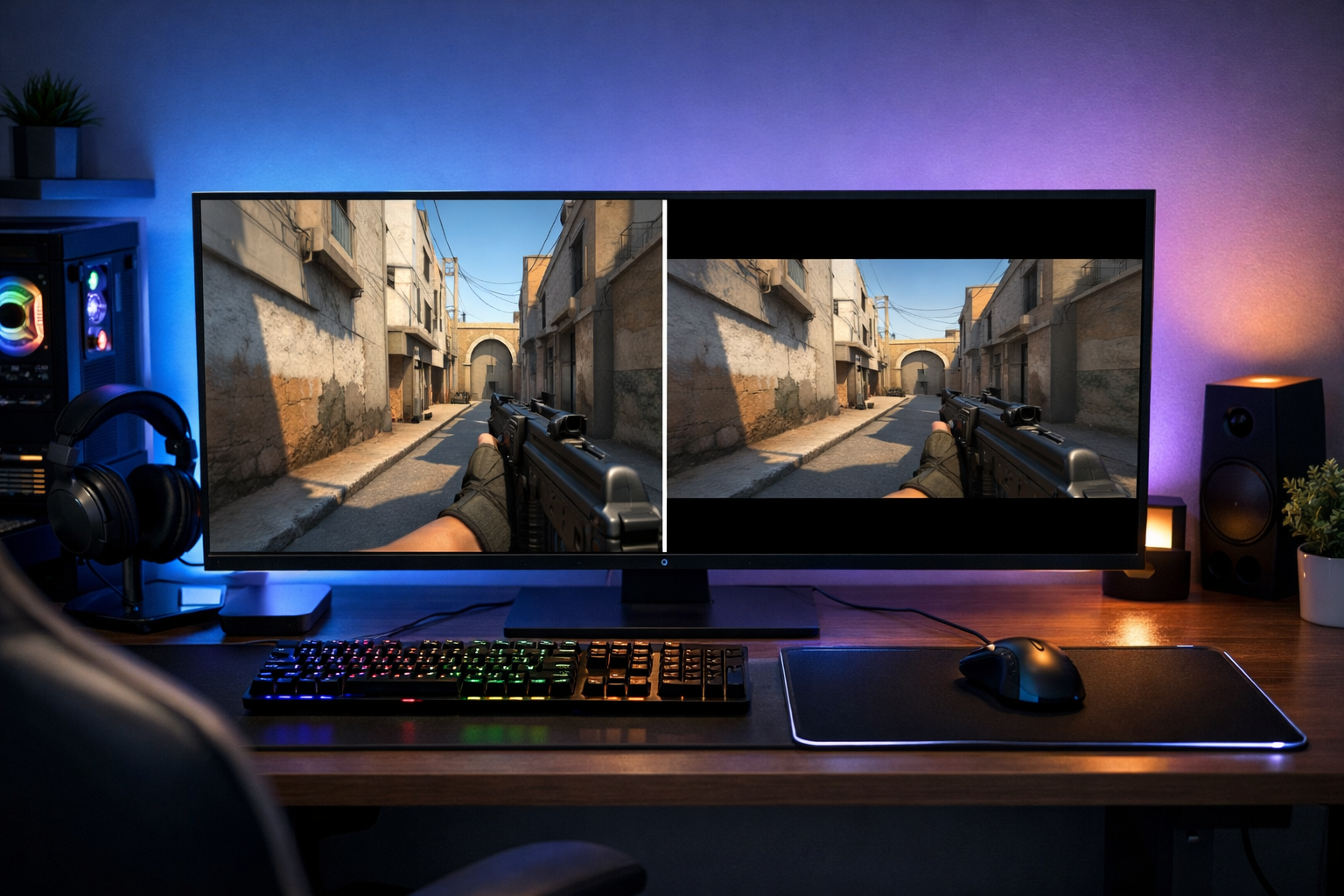
How to change resolution in cs2 stretched and black bars
change resolution cs2 stretched is the process of using a 4:3 resolution with GPU scaling so the image fills your screen instead of showing side bars. If you want black bars, you keep the same 4:3 resolution but switch scaling mode. The key is choosing the right resolution in CS2, then matching it with your NVIDIA, AMD, or Intel display settings.
TL;DR
- Pick a 4:3 resolution in fullscreen, then use GPU scaling to choose stretched or black bars.
- Full-screen scaling creates stretched 4:3, while aspect ratio scaling creates black bars.
- Test your choice in deathmatch, not menus, and keep it for several sessions before switching again.
If you want a fast answer, the workflow is simple: pick a 4:3 resolution in CS2, decide between stretched or black bars, then set the same scaling behavior in your GPU control panel. After that, test visibility, crosshair feel, and how player models look during movement.
Many players use 4:3 because it can make targets appear wider on screen. In many cases, that can feel easier for tracking, but it also reduces horizontal field of view compared with native resolution. If you want more settings help after this guide, the CS2 guides hub is a useful next step.
Set the goal before you change resolution cs2 stretched
Before changing anything, decide what you actually want from your image. Stretched 4:3 fills the monitor and makes models look wider. Black bars keeps the original 4:3 shape with empty space on the sides.
Neither option is automatically better. Stretched can feel more direct for aim in many cases, while black bars can feel cleaner if you dislike a widened image. Native resolution still gives the most screen space, so this advice may not apply if you value maximum peripheral view.
The most common reason to change resolution cs2 stretched is comfort. Some players like the larger target appearance, while others prefer black bars because the image keeps its original proportions. Your best choice depends on what helps you read duels, angles, and movement.
- Use stretched if you want a full-screen 4:3 image.
- Use black bars if you want 4:3 without image widening.
- Use native if you want the widest field of view.
- Test each option in deathmatch before locking it in.
Choose the right in-game resolution first
Open CS2, go to Settings, then Video. Set your display mode to fullscreen so scaling changes apply correctly. After that, choose an aspect ratio of 4:3 if your goal is stretched or black bars.
Common 4:3 choices include 1280×960 and 1024×768. 1280×960 usually looks cleaner on modern monitors, while 1024×768 can feel more old-school and slightly softer. For most players, 1280×960 is the easiest place to start.
At this stage, CS2 only handles the game resolution itself. Whether that 4:3 image becomes stretched or black bars often depends on your GPU scaling settings. That is why some players switch resolution in game and see no change until they update the control panel.
If you want a reference point for how competitive players organize their setup, checking a page like Perfecto CS2 settings can help you compare your overall video and input choices without copying blindly.
Apply stretched or black bars in your GPU control panel
This is the step that usually decides the final result. To change resolution cs2 stretched properly, you need fullscreen scaling enabled in your GPU software. For black bars, you need aspect ratio scaling instead.
NVIDIA workflow
Open NVIDIA Control Panel and go to Adjust desktop size and position. Under scaling mode, choose Full-screen for stretched or Aspect ratio for black bars. Then set scaling to be performed on the GPU and apply the changes.
After that, launch CS2 again and confirm the image matches your choice. If the game still looks wrong, recheck that CS2 is in fullscreen and not borderless fullscreen.
AMD and Intel workflow
In AMD Software, look for display scaling options and enable GPU scaling. Then choose Full panel for stretched or Preserve aspect ratio for black bars. On Intel graphics software, use the equivalent scaling menu and select either full screen or maintain aspect ratio.
The wording can vary by driver version, but the logic stays the same. Full-screen scaling stretches the image across the monitor. Aspect ratio scaling keeps the 4:3 shape and adds side bars.
Use a real match test instead of judging from menus
Menu screens do not tell you much about whether a resolution works in CS2. You need to test movement, peeking, recoil control, and target clarity in a live environment. A short deathmatch session is usually enough to spot obvious problems.
Start with one simple routine. Play ten minutes on your normal sensitivity, then focus on three things: how easy heads are to track, whether wide swings feel readable, and whether the image feels too blurry. If one of those feels off, adjust before you commit.
change resolution cs2 stretched can also affect how your sensitivity feels, even when the number stays the same. The mouse input is not magically different, but the visual presentation changes. Wider-looking models can make flicks seem shorter and close-range fights feel faster.
If you are rebuilding your setup more broadly, it can help to compare your mouse and monitor habits with a player page like k1to CS2 settings or review gear options such as the Logitech G Pro 2 Lightspeed if you want a lighter, more responsive input setup around your new resolution.
Fix common mistakes and lock in the best option
The most common mistake is changing the in-game resolution but leaving GPU scaling on the wrong mode. That often causes confusion because the game is set to 4:3, yet the monitor still shows an unexpected image. Always check both CS2 and the control panel together.
Another issue is using borderless fullscreen. In many cases, borderless can ignore the scaling behavior you expect and default back toward desktop handling. Fullscreen is usually the safer choice when you want reliable stretched or black bars behavior.
If the image looks too soft, try a higher 4:3 option like 1280×960 before giving up on the format. If stretched feels too wide, switch to black bars and test again. The goal is not to force a popular setup. The goal is to find a view that helps you clear angles and take duels with confidence.
As a practical next step, keep one resolution for at least a few sessions before changing again. Constant switching makes it harder to judge results. If you want to keep refining your setup after that, browse the CS2 guides hub for more video, crosshair, and sensitivity help.
FAQ
Is stretched better than black bars in CS2?
Not always. Stretched can make player models appear wider, which many players find easier for tracking. Black bars keeps the image proportions unchanged and can feel cleaner. The better option is the one that helps you read fights comfortably over several sessions.
Why is my CS2 resolution not stretching?
The usual cause is GPU scaling. You may have selected a 4:3 resolution in CS2, but your NVIDIA, AMD, or Intel control panel is still set to aspect ratio or display scaling. Make sure CS2 is in fullscreen and set scaling to full-screen in the GPU software.
What 4:3 resolution should I try first?
1280×960 is a strong starting point for most players because it looks cleaner than lower 4:3 options on modern monitors. If you want a softer image or a more classic feel, 1024×768 is another common choice. Test both briefly and compare clarity during fights.