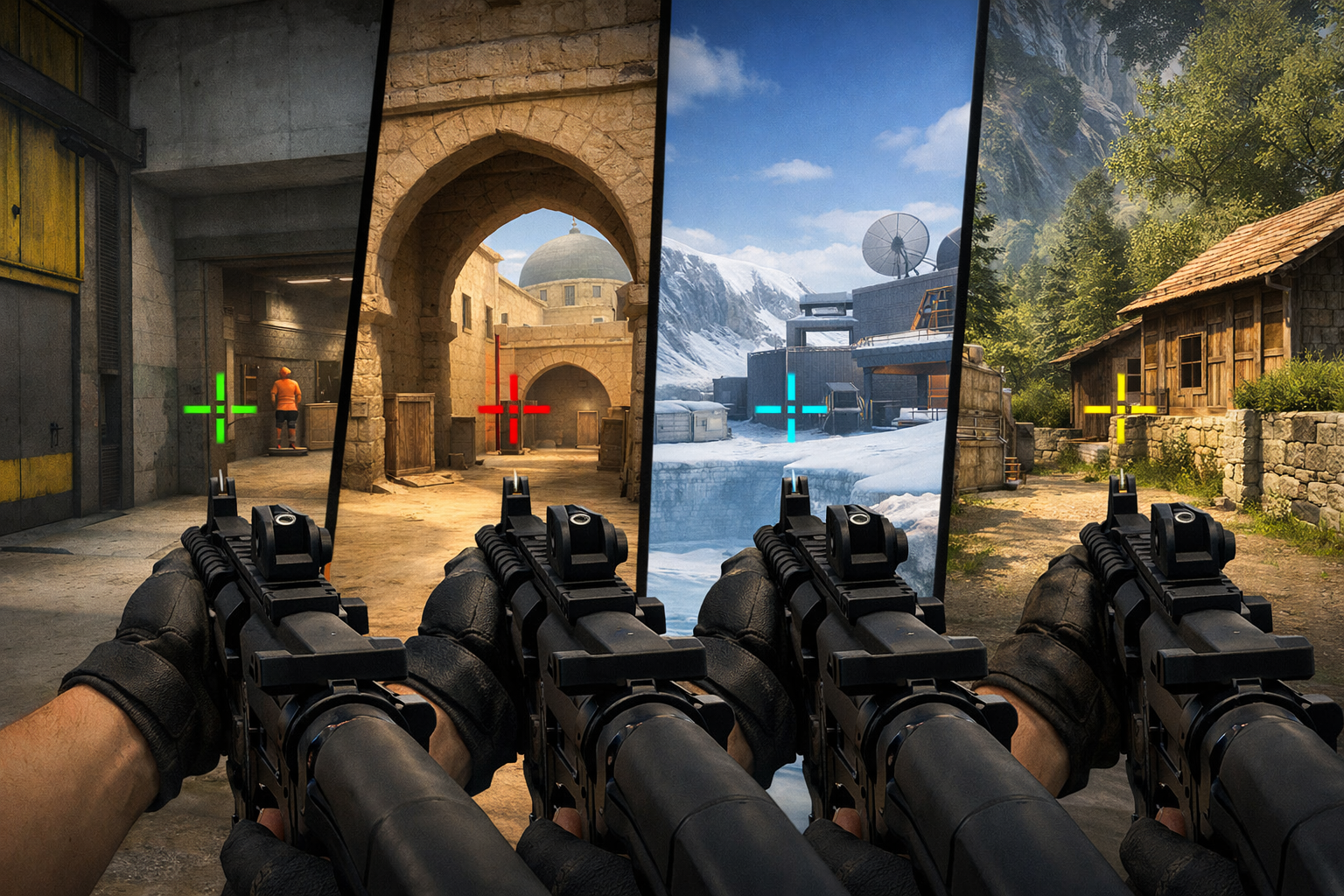
How to choose the best crosshair color in cs2
The best crosshair color CS2 players should use is the one they can track instantly against every common background. In practice, that usually means choosing a bright color with strong contrast, then testing it across maps, smokes, and different lighting so it stays visible when fights get messy.
TL;DR
- Prioritize contrast over style, since visibility changes across maps, smokes, and lighting.
- Cyan, green, and magenta are the most reliable starting colors for most players.
- Test only a few colors in real matches and keep all other crosshair settings unchanged.
Crosshair color looks like a small setting, but it affects how quickly you confirm your aim point in real rounds. If your crosshair blends into walls, skyboxes, utility, or player models, your first shot can feel less certain.
That is why the best crosshair color CS2 choice is rarely about style alone. It depends on contrast, brightness, map palette, and how your monitor displays color during fast movement.
If you want a starting point before deeper testing, bright cyan, green, and magenta often work well in many cases. You can compare more setups on the CS2 crosshair page and then narrow your own choice from there.
What actually affects crosshair visibility in CS2
The main factor is contrast. A crosshair is easier to track when it stands apart from the surfaces and effects behind it, especially during quick peeks and spray transfers.
CS2 maps include beige walls, gray concrete, green outdoor areas, blue sky, orange utility glow, and white lighting highlights. One color can look perfect on Mirage boxes, then disappear near bright windows or smoke edges on another map.
Display settings also matter. Higher brightness, digital vibrance, and monitor saturation can make some colors pop more, while other colors become harsh or washed out. Even if two players use the same code, the result can look different on each screen.
Enemy focus matters too. A crosshair should be visible without pulling your attention away from the target. If the color is too intense, your eye can lock onto the crosshair itself instead of the player model behind it.
Breaking down the strongest color options
There is no universal winner, but a few color families are usually the most practical. The best crosshair color CS2 players settle on is often one of these because each solves a different visibility problem.
Cyan and green for balanced contrast
Cyan is popular because it stays clear against many neutral backgrounds. It often stands out on gray walls, darker corners, and most indoor spaces without looking too aggressive.
Green can also work well, especially if you want a bright center point that remains easy to read during movement. The risk is that some green tones can blend more with outdoor areas, foliage, or certain utility-heavy scenes.
Magenta, yellow, and white for specific needs
Magenta often gives very strong separation from common map colors. If you lose your crosshair in green or blue-heavy scenes, magenta can be a smart fix.
Yellow can be excellent on darker surfaces, but it may lose clarity on bright sand-colored walls or strong lighting. White looks clean, yet it can fade into bright sky, flash-lit areas, and pale textures more often than players expect.
If you want to experiment quickly, the crosshair generator tool makes it easier to swap colors and compare visibility before committing to one setup.
The tradeoffs between bright, dark, and unusual colors
Bright colors are usually the safest starting point because they remain visible in motion. That said, the best crosshair color CS2 choice still needs control, not just brightness.
Very bright neon shades can create a glowing effect on some monitors. That can make the crosshair easier to find, but it can also soften the edges and reduce precision when you line up small head angles.
Darker colors can feel sharper in limited situations, especially on bright maps. The problem is consistency. Once the background turns dark, shadowed, or smoke-heavy, a dark crosshair can vanish at the worst time.
Unusual colors can solve specific problems, but they may introduce new ones. A pink or purple crosshair can be excellent for contrast, yet some players find those tones distracting over long sessions.
There is also a comfort tradeoff. A color that looks amazing in a screenshot may become tiring after several matches. If your eyes feel strained, your tracking and confidence can drop even if the crosshair is technically visible.
Hardware and visual settings can shift these tradeoffs. If you are already tuning your setup for clarity, guides like the best GPU for CS2 can help you think about how image quality and frame stability affect what you actually see in fights.
A simple routine to find your best crosshair color CS2 setup
The fastest method is to test only three or four colors, not ten. Too many options make small differences harder to judge.
- Pick one balanced color: cyan or green.
- Pick one high-contrast option: magenta.
- Pick one bright alternative: yellow or white.
- Play short sessions on at least two different maps.
During each test, check the same situations: holding an angle, swinging into sunlight, aiming through smoke edges, and tracking a moving target across mixed backgrounds. The best crosshair color CS2 option should stay readable in all of them, not just one.
Do not judge color only in warmup. Deathmatch and live rounds reveal more useful problems because your eye is under pressure and your crosshair moves across more surfaces.
It also helps to keep every other crosshair setting fixed while testing color. If you change thickness, outline, size, and color at once, you will not know which adjustment improved visibility.
For a practical reference, you can look at a real player setup like Spinx CS2 settings and compare the logic behind the crosshair choices with your own preferences. The goal is not to copy blindly, but to understand why certain colors remain readable.
Final recommendation: choose contrast first, then comfort
For most players, cyan is the safest first test because it balances visibility and comfort across many maps. If cyan disappears for you in bright scenes, try magenta next. If you want a more familiar bright look, test green after that.
The best crosshair color CS2 setting is the one you stop noticing during fights because it is always easy to find. That usually means strong contrast, stable visibility on multiple maps, and no eye strain after a full session.
Start with one bright balanced color, compare it against one high-contrast alternative, and keep the winner for several matches before changing again. A simple routine beats constant tweaking, and it gives you a crosshair color you can trust when rounds get chaotic.
Quick comparison
| Focus | Why it matters |
|---|---|
| Comfort | Helps the reader choose a more reliable path. |
| Control | Makes the practical outcome easier to understand and repeat. |
| Fit | Should match the reader’s goal, situation, and constraints instead of chasing generic advice. |
FAQ
What is the best crosshair color in CS2?
There is no single best option for everyone, but bright cyan is often the safest starting point. It usually offers strong contrast on many common backgrounds without being too harsh. If cyan blends in on your setup, magenta or green are the next most practical colors to test.
Does crosshair color affect aim in CS2?
Crosshair color can affect how quickly you confirm your aim point, especially during fast peeks and spray transfers. A color that blends into walls, utility, or bright lighting can slow visual confirmation. The effect is indirect, but in many cases it can improve consistency and confidence.
Should I use white or green crosshair color?
Green is usually more reliable than white because it stays visible on a wider range of backgrounds. White can look clean and sharp, but it often fades into bright sky, pale walls, and flash-lit areas. If you prefer a simple look, test both and compare them on multiple maps.