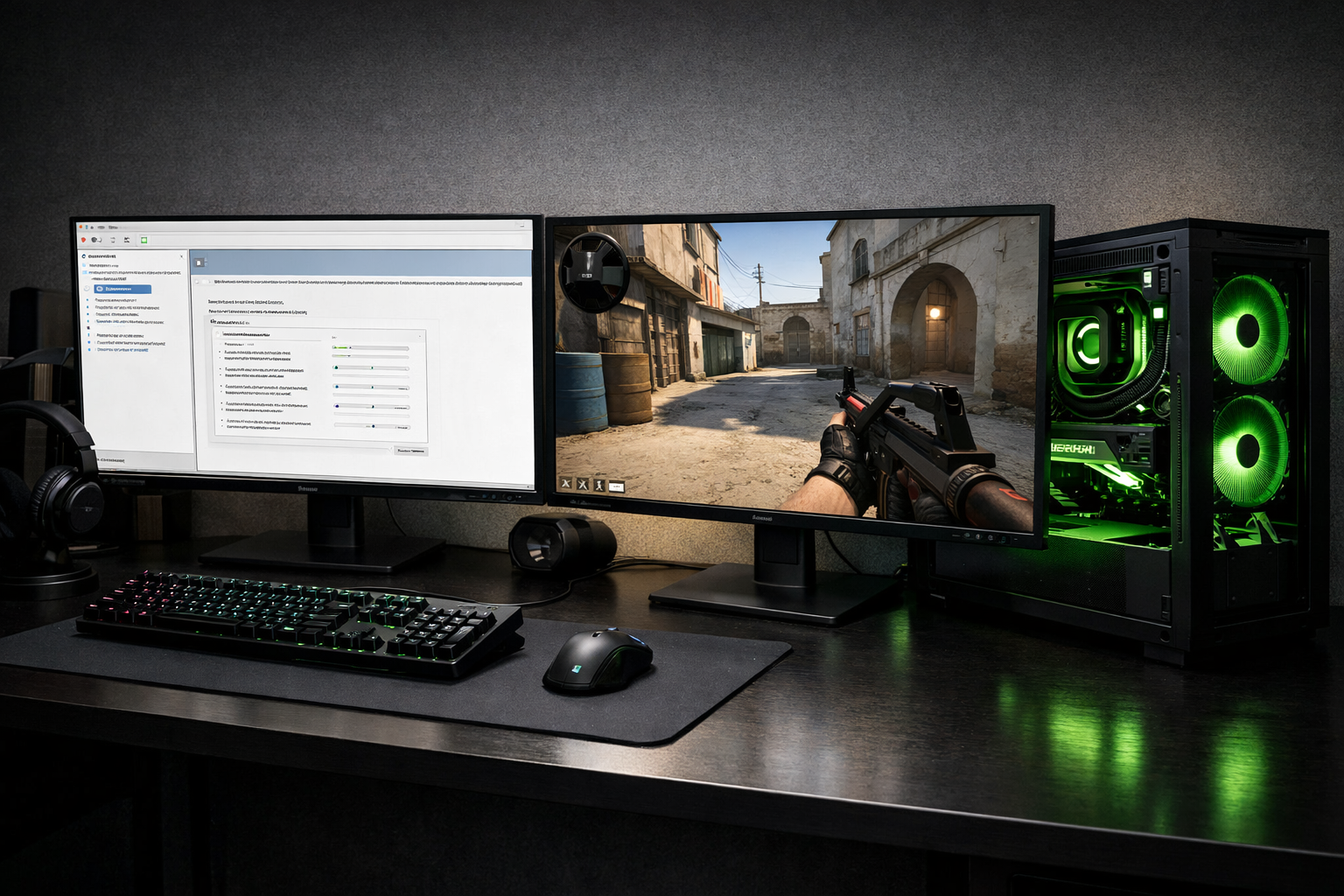
Nvidia settings for cs2: how to optimize for low latency and clear visibility
NVIDIA settings for CS2 can improve input response, frame consistency, and visual clarity when they match your PC and monitor. The best approach is not one universal preset. It is a small set of driver changes that reduce delay, avoid unstable frame pacing, and keep the image easy to read in fights.
TL;DR
- Use a CS2-specific NVIDIA profile and prioritize low latency plus stable frame times over extra image features.
- Start with Prefer maximum performance, Low Latency Mode On, and V-Sync Off for most competitive setups.
- Test one change at a time, because the best NVIDIA settings for CS2 depend on your FPS, refresh rate, and system limits.
If you want better results from NVIDIA settings for CS2, start with the goal instead of the menu. CS2 rewards low latency and stable frame delivery more than flashy image features. That means the right setup depends on your refresh rate, your average FPS, and whether your system is CPU-limited or GPU-limited.
A good baseline is to keep most global driver options at default and adjust CS2-specific settings in the NVIDIA Control Panel. If you compare your setup with other competitive configs, the CS2 guides hub is a useful place to branch into related tweaks without changing too many variables at once.
What actually affects NVIDIA settings for CS2
Three variables matter most: latency, frame pacing, and visibility. Latency is how quickly your input appears on screen. Frame pacing is how evenly frames arrive. Visibility is how clearly you can track models, edges, and motion during peeks.
Many players focus only on maximum FPS, but CS2 often feels better when frame times are consistent. A system that jumps between very high and very low frame output can feel less responsive than one that stays steady near your monitor refresh target.
Your monitor also changes the right choice. On a 144 Hz or 240 Hz display, settings that reduce queueing and keep FPS above refresh can feel better than image-focused options. On a weaker GPU, aggressive quality cuts may help more than driver-level latency tweaks.
That is why NVIDIA settings for CS2 should be optimized as a chain. Driver settings, in-game video options, and your FPS cap all interact. If one part is misaligned, the rest can lose value.
The driver options that matter most
Not every NVIDIA option is relevant for CS2. A few settings usually matter more than the rest because they affect render queue behavior, power state, and image processing.
Start with a clean CS2 profile
Open NVIDIA Control Panel, go to Manage 3D Settings, and create or edit the program profile for CS2. Using a game-specific profile is safer than changing everything globally, especially if you use your PC for other games or work.
Set Power management mode to Prefer maximum performance for CS2. This can help the GPU hold higher clocks more consistently during matches. In many cases, that improves frame stability more than it improves peak FPS.
Set Low Latency Mode to On as a starting point. Ultra can reduce queueing further, but it can also create uneven behavior on some systems. If your FPS is already unstable, Ultra is not always the better choice.
Turn Vertical sync off in the NVIDIA profile for CS2 unless you are intentionally building a G-Sync or capped-FPS setup. V-Sync can add delay, which is usually the wrong trade for a competitive shooter.
Image and filtering settings
Set Texture filtering – Quality to High performance or Performance if your system needs extra headroom. The visual loss is often small in motion, while the reduced overhead can help weaker GPUs. On stronger systems, Quality is still reasonable if your FPS stays comfortably high.
Leave Antialiasing settings application-controlled in most cases. Forcing driver antialiasing rarely gives the best result in CS2 and can add unnecessary overhead. The same logic applies to extra image sharpening if it creates halos or visual noise.
Threaded optimization can usually stay on Auto. Shader Cache should also stay at the default driver behavior unless you are troubleshooting. These settings can matter, but they are rarely the first place to look when optimizing NVIDIA settings for CS2.
Where the tradeoffs change by system and monitor
The best NVIDIA settings for CS2 depend on what your hardware is failing to do. If your GPU usage is high and FPS drops during utility or crowded fights, reduce image cost first. If GPU usage is low but FPS still dips, you may be CPU-limited, and driver changes alone will not solve it.
For high-refresh players, the main tradeoff is between absolute image quality and response. Lower filtering quality, disabled sync, and a sensible FPS cap often produce a cleaner competitive feel. If you want a reference point for a stripped-back competitive setup, browsing a player page like tabseN CS2 settings can help you compare your broader config choices.
For G-Sync users, the tradeoff is different. You can often get smoother motion by enabling G-Sync, keeping V-Sync controlled carefully, and capping FPS slightly below refresh. That can feel excellent, but only if the cap is stable. If your frame rate swings hard, the setup loses much of its benefit.
Laptop users should be even more careful with power settings. Prefer maximum performance can help, but thermals may become the limiting factor. If clocks drop after several rounds, a lighter visual setup may outperform a more aggressive driver profile.
| Situation | Better choice | Main tradeoff |
|---|---|---|
| FPS well above refresh | Low Latency On, V-Sync Off, moderate FPS cap | Less visual smoothing |
| GPU near 95%+ usage | Lower filtering quality, reduce in-game load | Softer image |
| Using G-Sync | Stable cap below refresh, careful sync setup | More setup complexity |
| Laptop or hot system | Balanced settings with lower heat output | Less aggressive performance tuning |
A simple routine to test and lock in your setup
Do not change ten settings at once. Optimize NVIDIA settings for CS2 by testing one group at a time, then keeping only the changes that improve feel and consistency.
Use this routine:
- Set a CS2-specific NVIDIA profile and disable unnecessary sync features.
- Play a repeatable map or deathmatch session and watch FPS lows, not only peaks.
- Try Low Latency Mode on, then compare it with Ultra only if frame pacing stays stable.
- Adjust texture filtering quality only if you need more headroom.
- Add an FPS cap that keeps usage below full saturation when possible.
The key is to watch for stutter during fast turns, sprays, and utility-heavy fights. If a setting raises average FPS but makes those moments feel less even, it may not be the right competitive choice.
It also helps to compare your full setup, not just the driver panel. Mouse weight, pad speed, and sensitivity can shape how responsive the game feels. If you are still refining your overall setup, a lightweight option like the SteelSeries Aerox 3 Wireless may be worth a look alongside your graphics tuning.
As a final recommendation, start conservative. Use Prefer maximum performance, Low Latency Mode On, V-Sync Off, and application-controlled antialiasing. Then tune filtering quality and FPS cap around your hardware. NVIDIA settings for CS2 work best when they support stable frame times first and visual extras second.
FAQ
Should I use Low Latency Mode Ultra in CS2?
Ultra can help on some systems, but it is not always the best default. Start with Low Latency Mode On, then test Ultra only if your frame pacing stays smooth. If the game feels less even during fights or utility, switch back to On.
Is V-Sync ever useful for competitive CS2?
Usually, competitive players keep V-Sync off because it can add input delay. It can still make sense in some G-Sync setups when paired with a proper FPS cap below refresh. The important part is testing whether the smoother motion is worth the added complexity.
Do NVIDIA settings matter more than in-game settings?
Not usually. NVIDIA settings for CS2 work best as support for your in-game video settings, not as a replacement. Driver tweaks can improve latency behavior and consistency, but large FPS gains often come from the right in-game quality choices and a sensible frame cap.