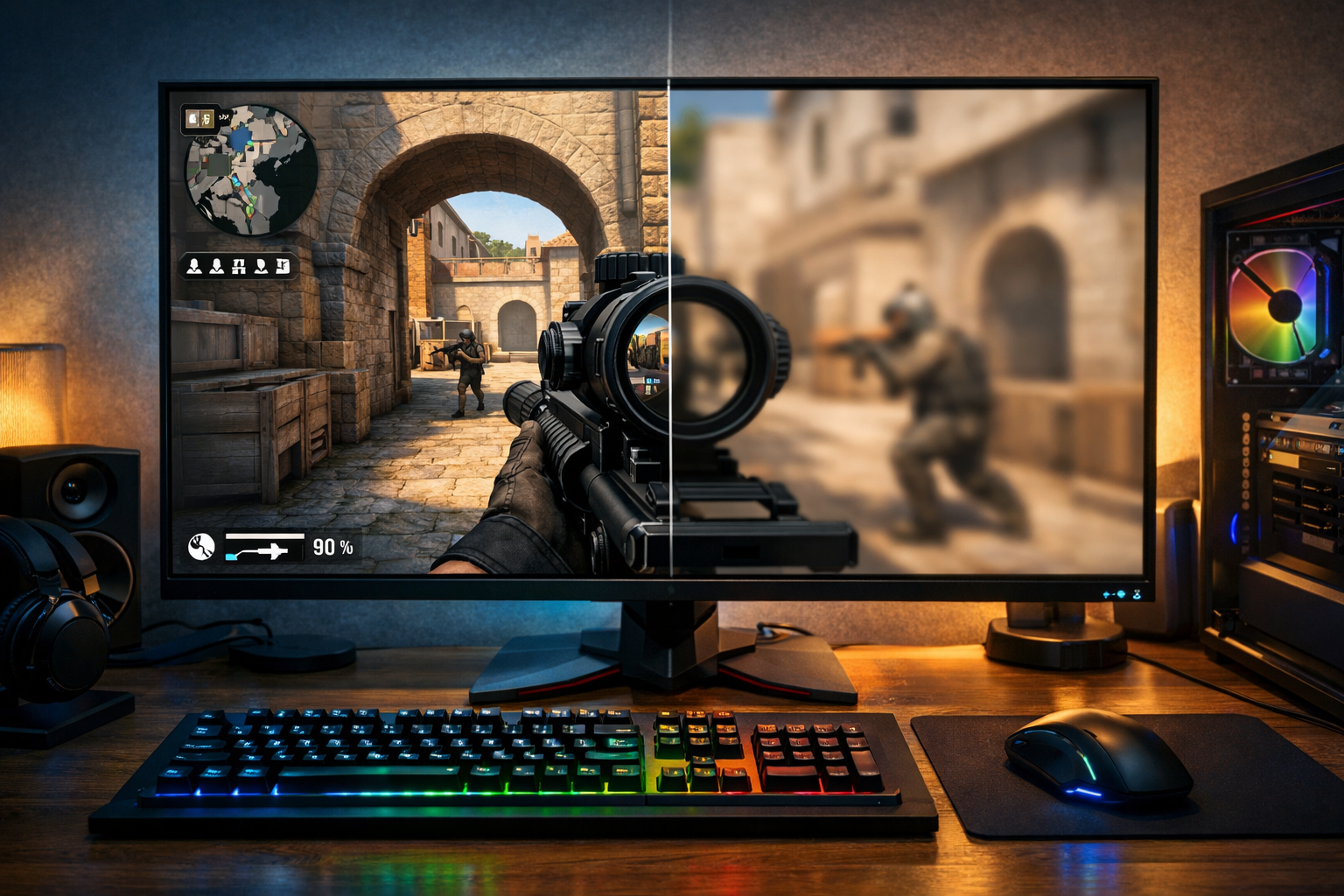
Best cs2 video settings for fps and visibility
The best CS2 video settings balance frame rate, clarity, and consistency. For most players, the best CS2 video settings use lower-impact visual options, high visibility choices, and a short testing routine so your game stays smooth in fights.
TL;DR
- Start by protecting stable FPS and frame times, then improve visibility with selective quality increases.
- Resolution, shadows, effects, and anti-aliasing create the biggest tradeoffs for competitive CS2.
- Test one setting at a time in repeatable fights instead of copying a single preset blindly.
Finding the right setup is not about copying one preset and hoping it works. The best CS2 video settings depend on your PC, your monitor refresh rate, and how much visual detail you are willing to trade for cleaner fights.
If your system is already close to your monitor limit, small changes can make a real difference. If your PC struggles in smokes, utility, or crowded sites, the same settings can decide whether the game feels stable or uneven.
A good starting point is to think in layers. First, protect FPS and frame time stability. Then improve enemy visibility. After that, add back visual quality only when it does not hurt consistency.
If you want a broader performance baseline before changing in-game options, the CS2 guides hub is a useful place to compare related setup advice.
What actually changes FPS and visibility in CS2
Not every video option matters equally. Some settings mainly affect how sharp or attractive the game looks, while others can lower performance during the exact moments when you need stable aim.
The biggest variables are resolution, upscaling behavior, shadow quality, shader-related effects, texture detail, and anti-aliasing. These settings can change both average FPS and frame time consistency, which often matters more than a high peak number.
Visibility is a separate issue. A setting can look better but make enemies blend into dark corners, busy backgrounds, or particle-heavy fights. That is why the best CS2 video settings are usually a compromise, not a maxed-out preset.
Monitor refresh rate also changes the answer. A player targeting 144 FPS can accept different tradeoffs than someone trying to hold 240 or 360. Your target should be stable performance above your comfort threshold, not the highest screenshot number.
The settings that matter most first
Start with resolution and display mode. Fullscreen is usually the safest choice for responsiveness and consistency. Native resolution gives the cleanest image, but lower resolutions can raise FPS and make player models appear larger on screen.
There is no universal winner here. If you lose track of targets at range, native can help. If your PC drops too hard in action, a lower resolution can be the better competitive choice.
Next, lower the options that often cost performance without giving much competitive value. Shadow quality, effect detail, and heavy post-processing style options are common places to cut first. Texture quality is more flexible because it can depend on available VRAM.
Anti-aliasing is a classic tradeoff. More AA can smooth edges and reduce shimmer, but it can also cost frames and slightly soften the image. In many cases, low or moderate AA gives a better balance than turning it all the way up.
Anisotropic filtering is usually easier to keep higher than many players expect, since it mainly helps surface clarity at angles. It often has a lighter competitive cost than other visual features, so it is not the first setting to sacrifice.
A practical baseline for most players
For a broad starting point, use fullscreen, keep boost player contrast enabled if available, and set the expensive visual options toward low. Then test whether native resolution still holds your target FPS in real matches.
- Use fullscreen display mode
- Start with low shadows and effects
- Keep textures moderate if VRAM allows
- Use low or moderate anti-aliasing
- Raise resolution only if stability remains strong
This kind of baseline is common because it protects clarity in motion. If you want to compare how individual players approach overall setup philosophy, pages like NAF CS2 settings can give useful context, even though your hardware may need different video choices.
Where the tradeoffs change by hardware and play style
The best CS2 video settings for a mid-range PC are not always the same as for a high-end system. On weaker hardware, the priority is usually removing stutter and keeping fights predictable. On stronger hardware, you can spend some performance on image clarity.
If you play entry roles or take fast duels, frame time stability can matter more than prettier visuals. Quick peeks, spray transfers, and tracking through utility feel worse when the game fluctuates, even if the average FPS still looks decent.
If you anchor more often or prefer long-range rifle fights, image sharpness can become more valuable. Cleaner edges and better distant detail can help target recognition, especially on larger monitors.
There is also a hardware ceiling to consider. If your CPU is the main limit, lowering some GPU-heavy settings may not fix the worst drops. In that case, broader upgrade planning may help more than endless menu tweaking, and the best PC for CS2 guide can help frame what matters most.
When to favor FPS over image quality
Favor FPS when your game drops below your monitor refresh target, when smokes or executes feel uneven, or when input feels inconsistent during fast turns. Those are signs that visual quality is costing more than it gives back.
Favor image quality when your frame rate is already comfortably above target and visibility is your bigger issue. In that case, raising resolution or using a slightly cleaner AA setting can make more sense than chasing extra unused frames.
A simple routine to find your best CS2 video settings
Use a short test loop instead of changing everything at once. The best CS2 video settings are easier to find when you isolate one variable, play a repeatable scenario, and judge both feel and readability.
First, set a baseline with low-impact competitive settings. Play a deathmatch, a practice server, or a few rounds with heavy utility. Watch for drops during sprays, peeks, and smoke-heavy fights rather than only checking idle FPS.
Then change one major variable at a time. Resolution first, then anti-aliasing, then textures, then shadows or effects. If a change improves image quality but hurts consistency, revert it and move on.
A compact routine looks like this:
- Set a low-to-moderate competitive baseline.
- Test native versus lower resolution.
- Adjust AA one step at a time.
- Raise textures only if VRAM headroom is fine.
- Keep the version that feels stable in real fights.
This process is more reliable than copying a single screenshot. If you want another reference point for how competitive players structure their overall setup, you can also browse es3tag CS2 settings and compare the broader approach.
Final recommendation for most players
For most systems, the best CS2 video settings start with fullscreen, a resolution your PC can hold consistently, low shadows and effects, moderate textures, and restrained anti-aliasing. That setup usually gives the cleanest balance between FPS and visibility.
If your game already stays well above your target refresh rate, spend that extra headroom on clarity rather than visual extras that do little for competitive play. Native resolution or slightly cleaner edge smoothing can help more than decorative detail.
If your performance is unstable, be stricter. Lower resolution, reduce expensive effects, and prioritize smooth fights over a prettier image. In CS2, consistency often helps more than visual richness.
The best CS2 video settings are the ones you can trust in real rounds. Build around stable frame times first, then add clarity where your hardware allows it.
Quick comparison
| Focus | Why it matters |
|---|---|
| Comfort | Helps the reader choose a more reliable path. |
| Control | Makes the practical outcome easier to understand and repeat. |
| Fit | Should match the reader’s goal, situation, and constraints instead of chasing generic advice. |
FAQ
Should I use native resolution in CS2?
Native resolution can improve image clarity and make distant targets easier to read. It is usually the better choice if your FPS stays comfortably above your refresh target. If your game drops during utility or busy fights, a lower resolution can be the smarter competitive option.
Which video settings hurt FPS the most?
Resolution, shadow quality, effects, and some shader-heavy options often have the biggest impact. Anti-aliasing can also cost useful frames depending on your hardware. Textures matter more when VRAM is limited, so they are not always the first setting to lower.
Are low settings always best for visibility?
Not always. Very low settings can improve performance, but they can also reduce image clarity in some situations. The best result usually comes from lowering expensive visual effects first, then keeping enough sharpness and contrast to track enemies comfortably.